Create your departments
In this lesson you learn
A department is where the work happens: Stamping, Welding, Assembly. DOVA can create all of them from your part numbers in one click, or you can add them one by one.
After this lesson
You will be able to create the departments of your plant, so every work order shows up in the right place.
Before you start
Do the part numbers step first. Each part number carries its department, and DOVA reads that list to create your departments for you.
One part belongs to one department. The name must be the same in both places, for example "Stamping" on the part and "Stamping" as the department.
Step by step
Open Departments
Open Departments. Stay on the first tab, Part number departments. You will see two buttons: Create from Part Numbers and Create Department.
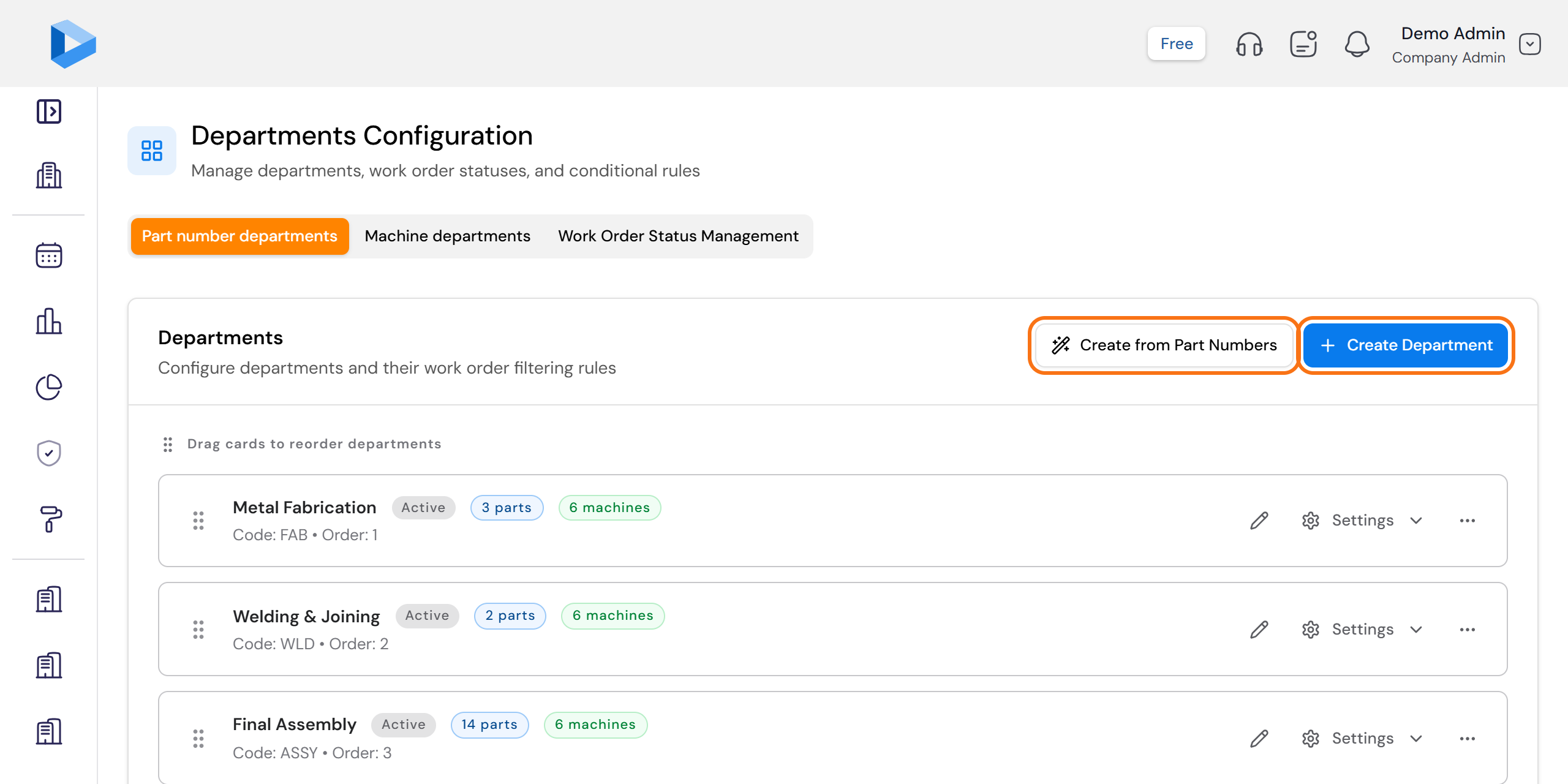
Create them from your part numbers
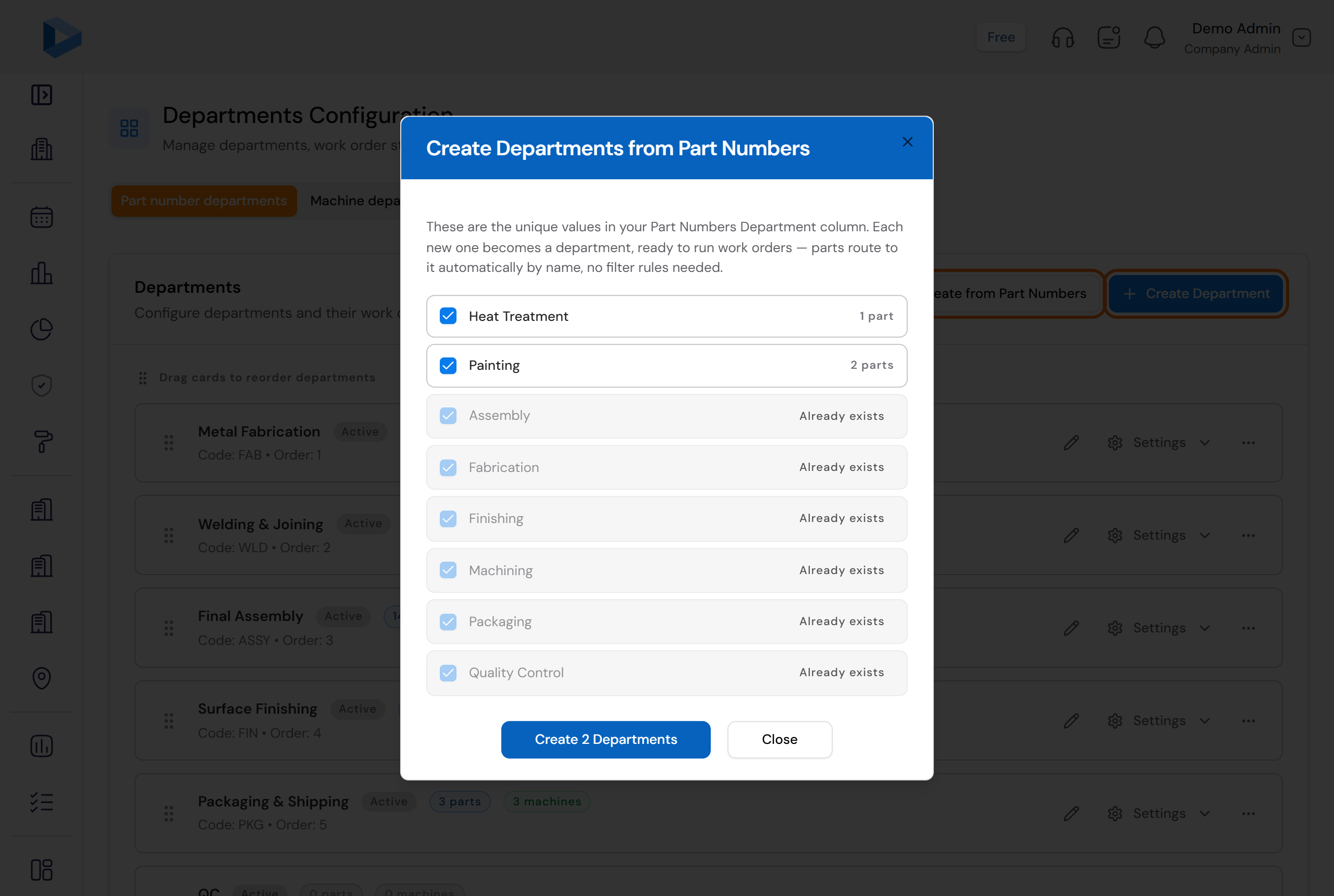
Click Create from Part Numbers. DOVA reads the Department column of your part numbers and lists every name it finds, with how many parts use it.
- New names — ticked and ready to create. Untick any name you do not want.
- Already exists — that department is already in DOVA. Nothing happens to it.
Click the blue Create Departments button. It shows how many it will create. Your parts now go to these departments by name. No rules are needed.
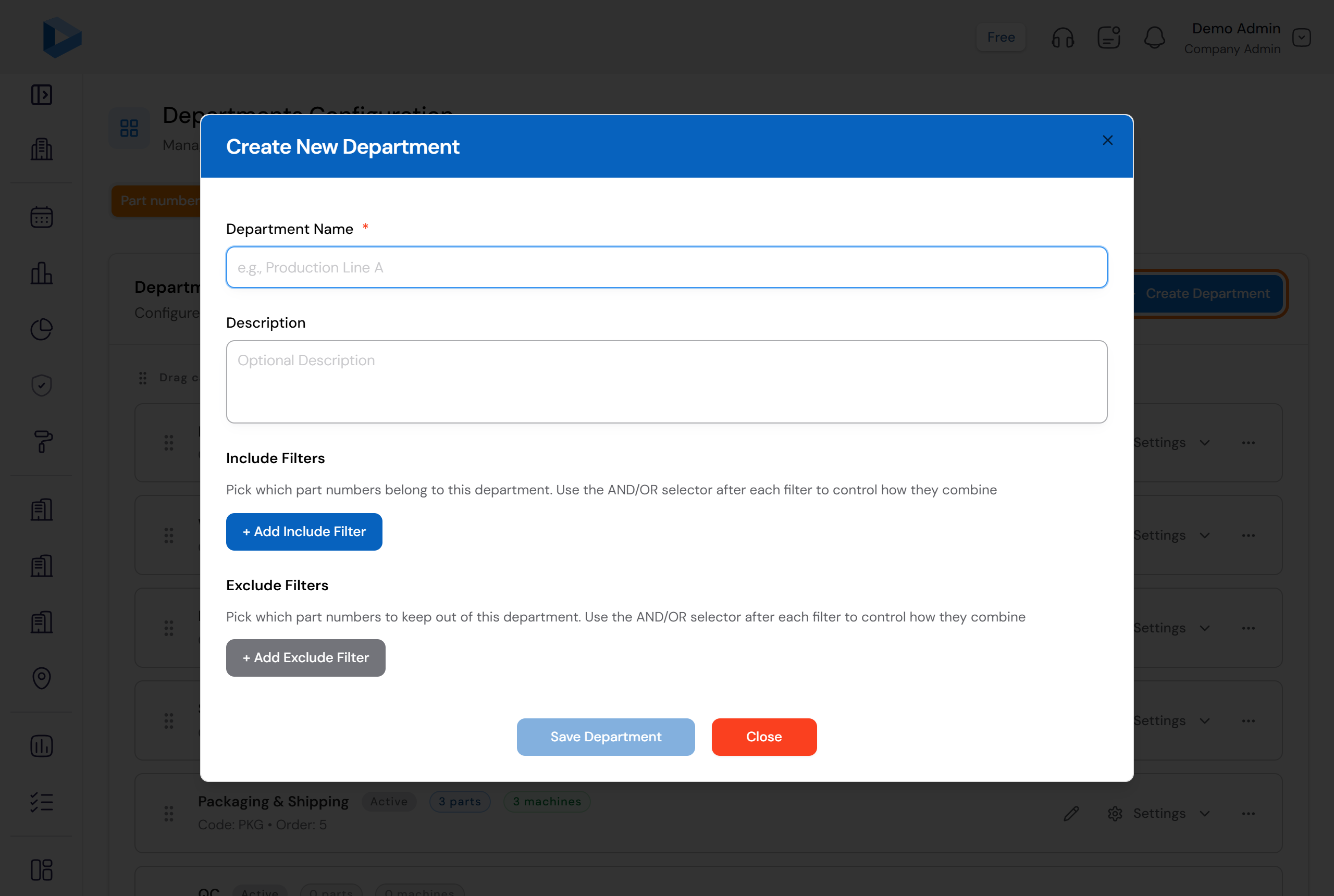
Or add one by hand
Click Create Department. Type the Department Name. The Description is optional. Leave Include Filters and Exclude Filters empty for now, and click Save Department.
You are done
Your departments are listed on the page. In the setup guide, this step now shows a green tick with the number of departments.
Questions people ask
Which way should I use?
If your part numbers already have a Department column filled in, use Create from Part Numbers. It is faster and the names match your parts exactly. If not, use Create Department and type them.
The list in Create from Part Numbers is empty. Why?
Your part numbers have no Department value yet. Fill the Department column on the Part Numbers page first, or create the departments by hand.
Do I need the Include Filters and Exclude Filters?
No, not to start. A part goes to the department with the same name as its Department value. The filters are only for special rules later.
What is the Machine departments tab?
It is for machines that run by rate, with no part number. Most plants start with Part number departments only and come back to this tab later.
Need more help?
Contact customer support with your question. We reply within one business day.
contact@dovamfg.com