Upload your part numbers from Excel or CSV
In this lesson you learn
Load your whole part list from one file. DOVA matches your columns, checks every row, and shows what it will import before anything is saved.
After this lesson
You will be able to load your whole part list into DOVA from one Excel or CSV (a plain text spreadsheet) file.
Before you start
Your file needs one row per part and a heading row on top. Only two columns are required:
- Part Number — your own number for the part.
- Ideal Cycle Time — how long one good part should take to make. DOVA uses it to score OEE (Overall Equipment Effectiveness — how well a machine runs compared to its best).
Every other column is optional: Description, Department, SKU, prices and more.
A row with no part number or no cycle time is skipped, so check these two columns first.
Step by step
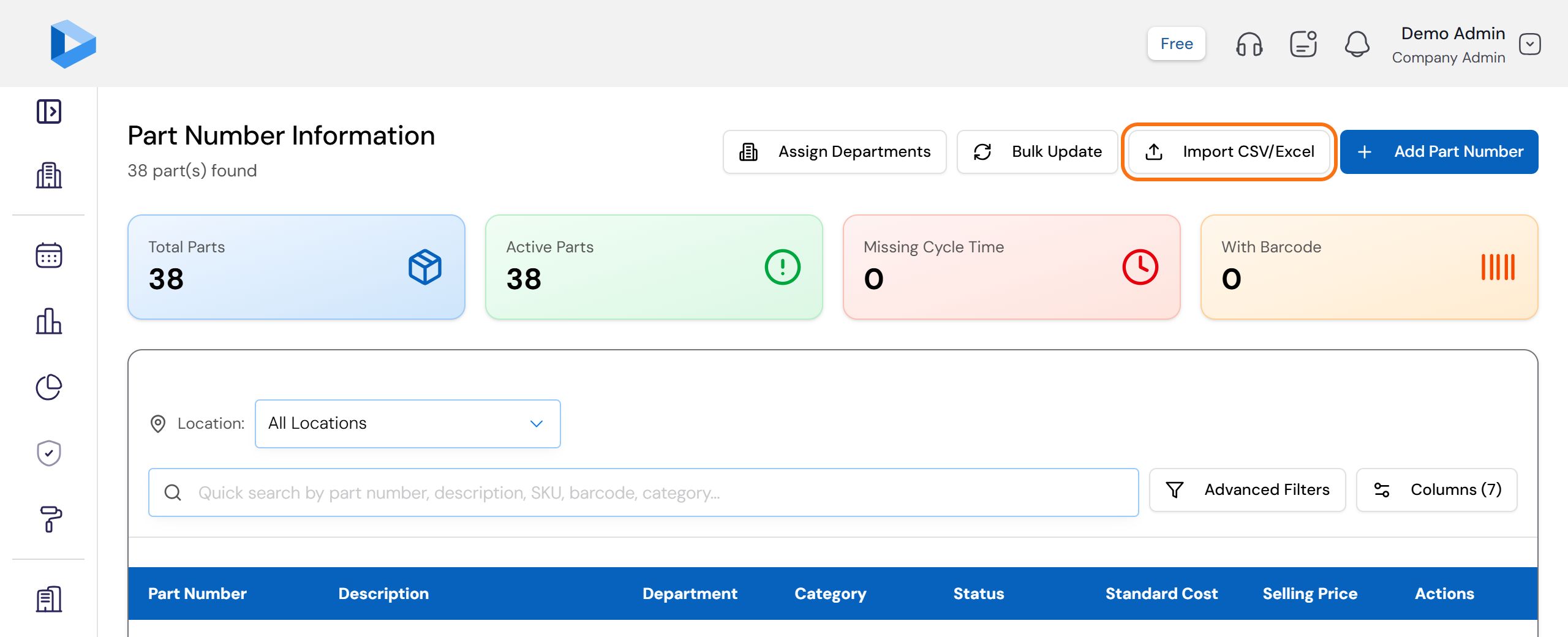
Open the import screen
Open Part Numbers and click Import CSV/Excel. No file yet? Click Download CSV Template on the import screen. It gives you an empty file with the right headings.
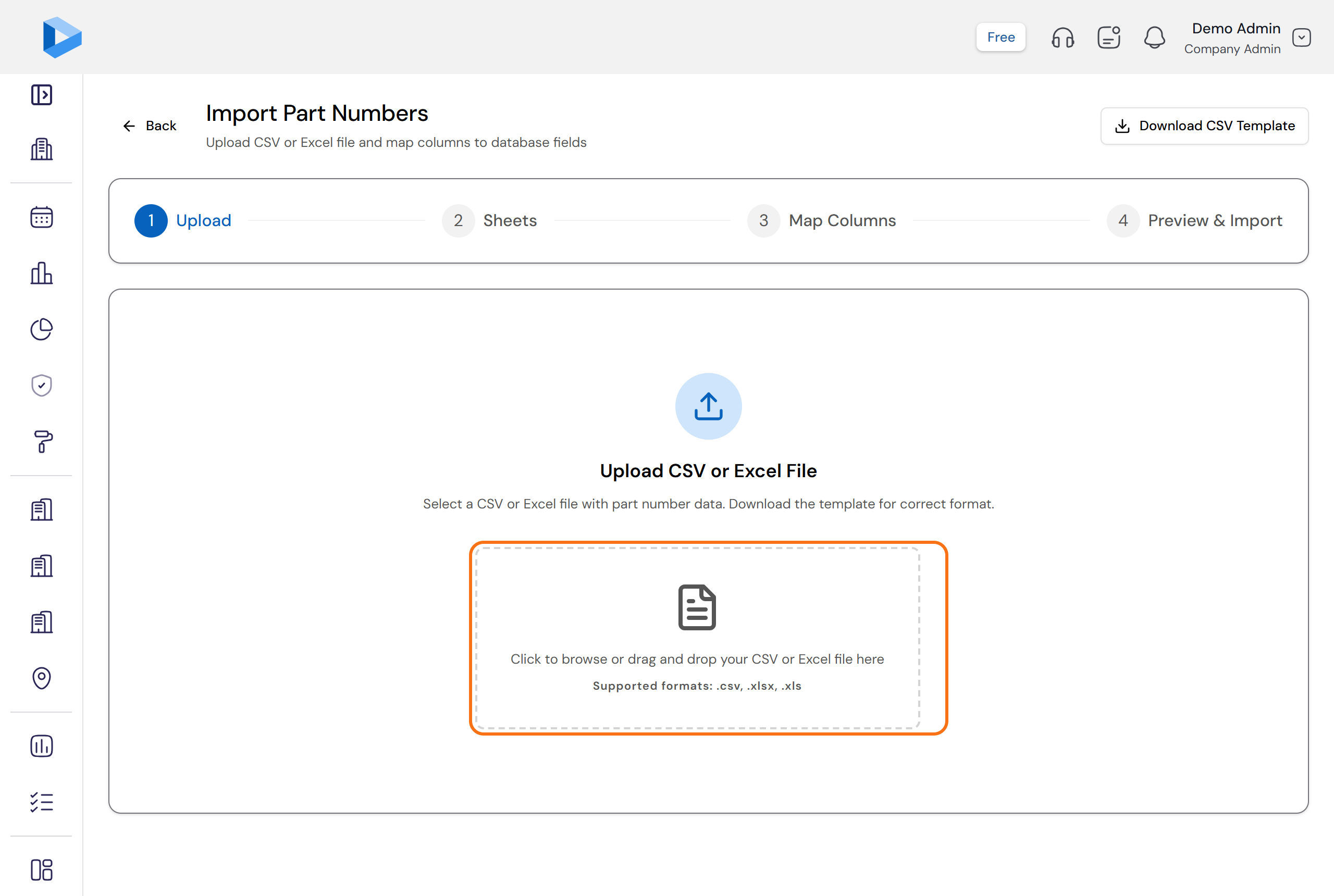
Upload your file
Click the upload box, or drag your file onto it. DOVA accepts .csv, .xlsx and .xls files. If your Excel file has more than one sheet, DOVA shows Select Sheets to Import. Tick the sheets that hold parts, then click Continue.
Map Columns
DOVA lists your columns and matches the ones it recognises by itself. For each of your columns, pick the DOVA field it belongs to. The two required fields are shown at the top. When both are matched, click Continue to preview.
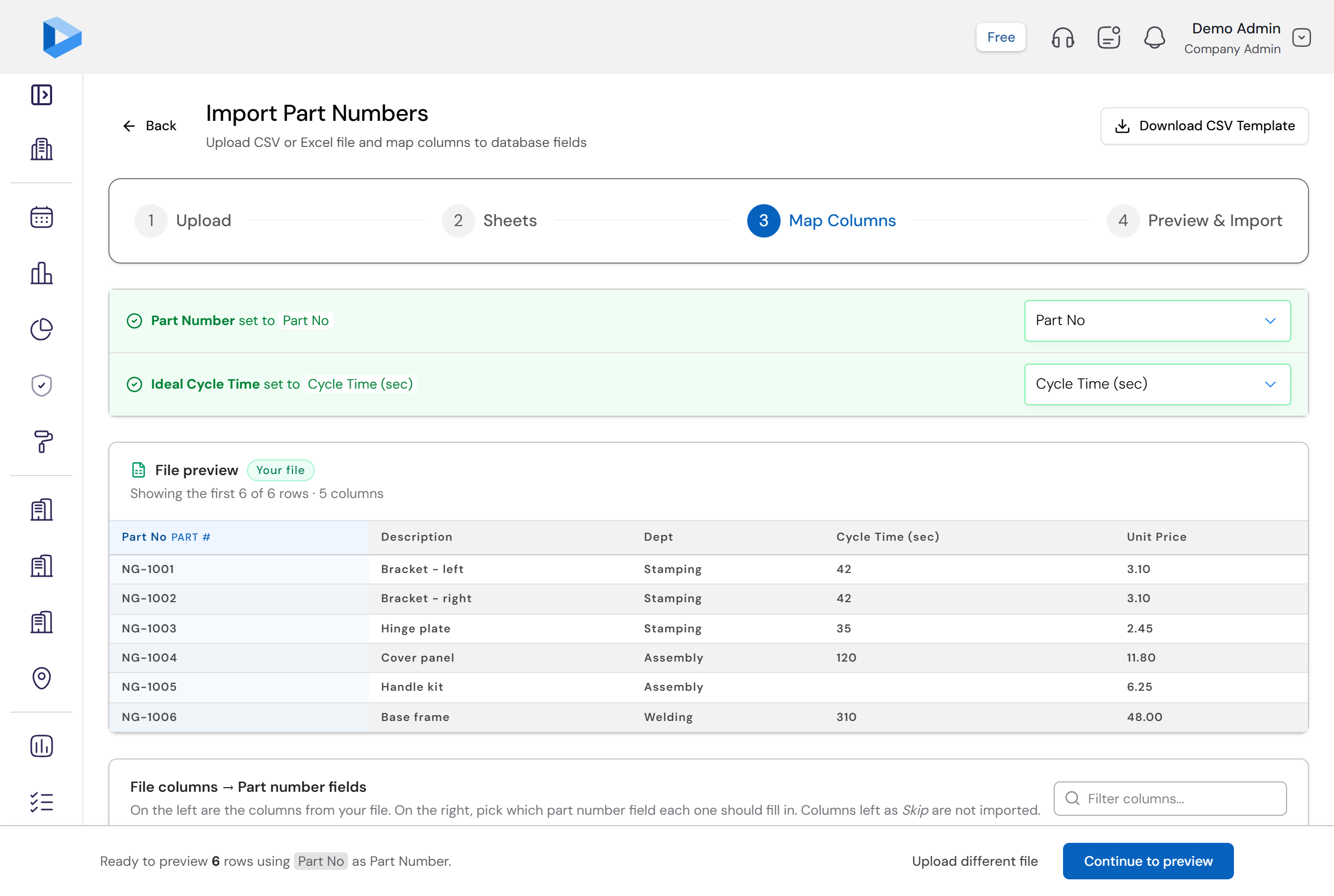
DOVA never guesses silently. A column you do not match is simply not imported.
Check before import
DOVA shows Check before import: how many parts will be imported, how many rows will be skipped, and the reason for each one. Nothing is saved yet.
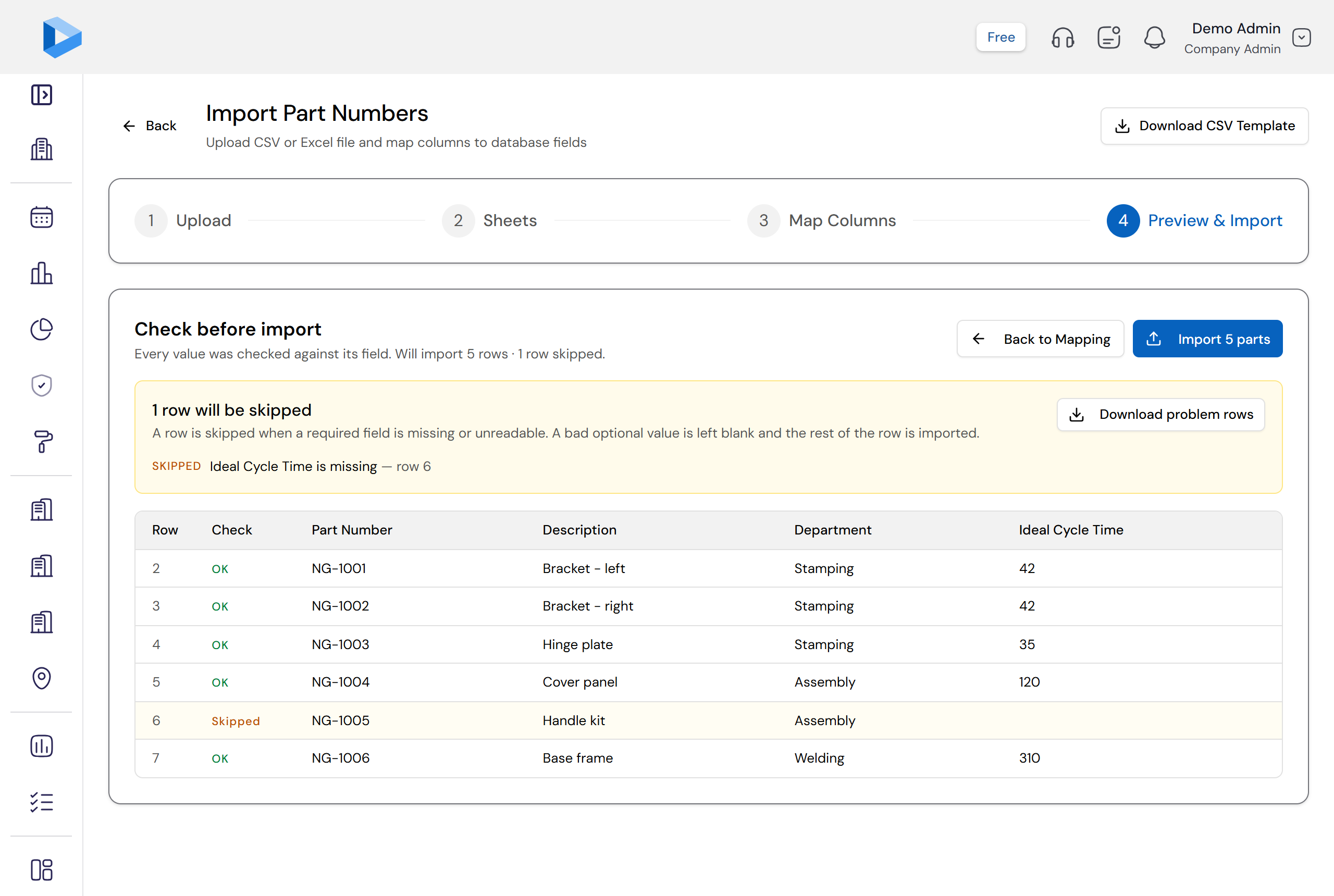
- Skipped — a required value is missing or cannot be read. The row is left out.
- Blank field — an optional value could not be read. The part is imported and that one field stays empty.
Click Download problem rows to get the skipped rows as a file. Fix them in Excel and upload again later. When the check looks right, click the Import button. It shows how many parts it will import.
If a part number already exists
If some part numbers are already in DOVA, you choose what happens:
- Proceed (Replace All) — update all of them from your file.
- Review — tick which ones to update.
- Skip All — keep the version in DOVA and import only the new parts.
You are done
The Import Complete screen shows four numbers: Imported, Updated, Skipped and Left blank. Your parts are now on the Part Numbers page.
Questions people ask
How many parts can I import at once?
Up to 5,000 rows in one file. If your list is longer, split it into two files and import them one after the other.
Will an import delete parts that are already in DOVA?
No. An import only adds parts or updates them. When a part number already exists, DOVA asks you what to do: replace, review one by one, or skip.
My column names are different from the names in DOVA. Is that a problem?
No. On the Map Columns step you tell DOVA which of your columns is which field. Your file does not need to change.
What happens to a row with a mistake?
The row is skipped and DOVA tells you why. Download the problem rows, fix them in Excel, and upload that file. The good rows are imported the first time.
Need more help?
Contact customer support with your question. We reply within one business day.
contact@dovamfg.com