Set up your plant from one Excel file (Company Setup Workbook)
In this lesson you learn
Download the workbook, fill in the tabs, upload it. DOVA checks every row and shows what it will add before anything is written.
The Company Setup Workbook is one Excel file that sets up a whole plant: departments, areas, machines, part numbers, operators, downtime and rejection reasons, suppliers, spare parts, maintenance areas, contractors and their contacts. Fill it in once and upload it. You can upload it again later to add more.
After this lesson
You will be able to set up a plant in DOVA from one file instead of typing every record by hand.
Step by step
Download the workbook
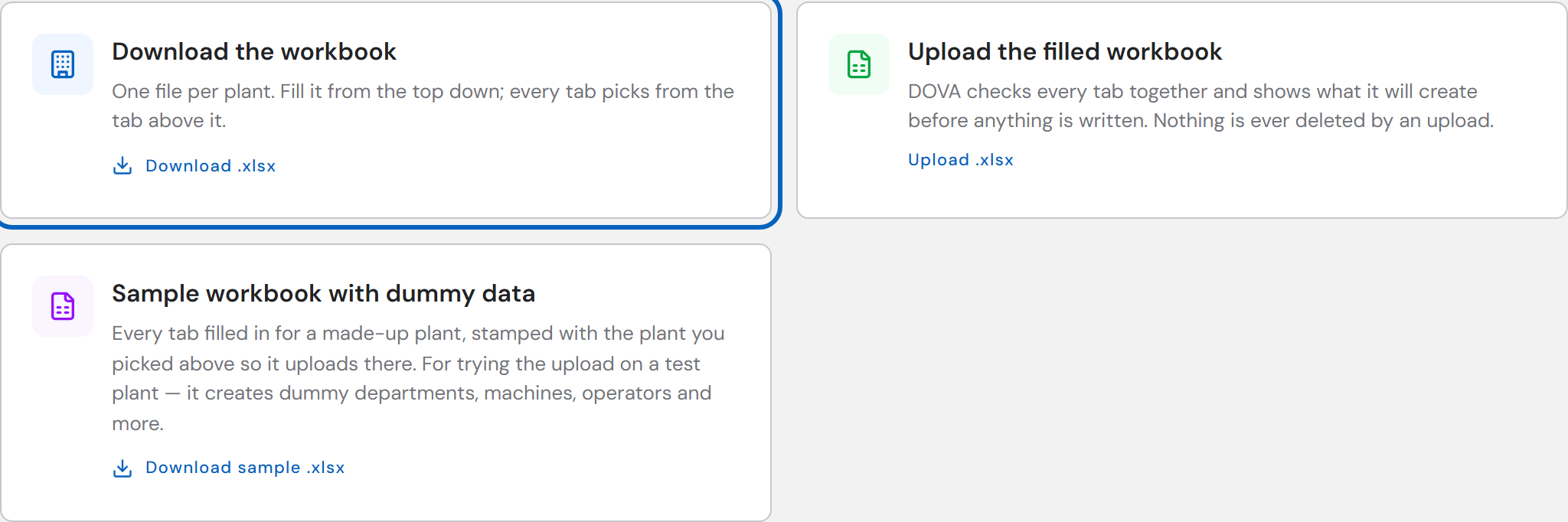
Open Admin → Data Sources and find the Company Setup Workbook section. Pick the plant, then click Download the workbook. One file is for one plant — download a separate file for each plant.
Fill in the tabs
Fill the tabs from the top down. Every tab picks from the tab above it: a machine picks its department, a part number picks its department, a spare part picks its supplier. Dropdown cells only accept what is already on the list, so type the list first.
- Location — the plant itself.
- Departments, Areas, Assets — Areas is a path grid: Building │ Level │ Zone │ Production line. Fill only the levels you use. On the Assets tab, the Family column says what each thing is: a production machine, support equipment (a forklift, a compressor) or a general asset (a photocopier).
- Part Numbers — one part belongs to one department.
- Operators — name and operator ID only. No emails are sent. Anyone you give app access gets a temporary password, shown once after the import.
- Downtime Reasons and Rejection Reasons — keep the lists short.
- Suppliers, Spare Parts, Maintenance Areas, Contractors, Contractor Contacts — the maintenance side.
Every column header carries a note in Excel that says what goes in it. Hover a header to read it. Leave a cell empty when you do not know the value — an empty cell never erases anything in DOVA.
Upload and check
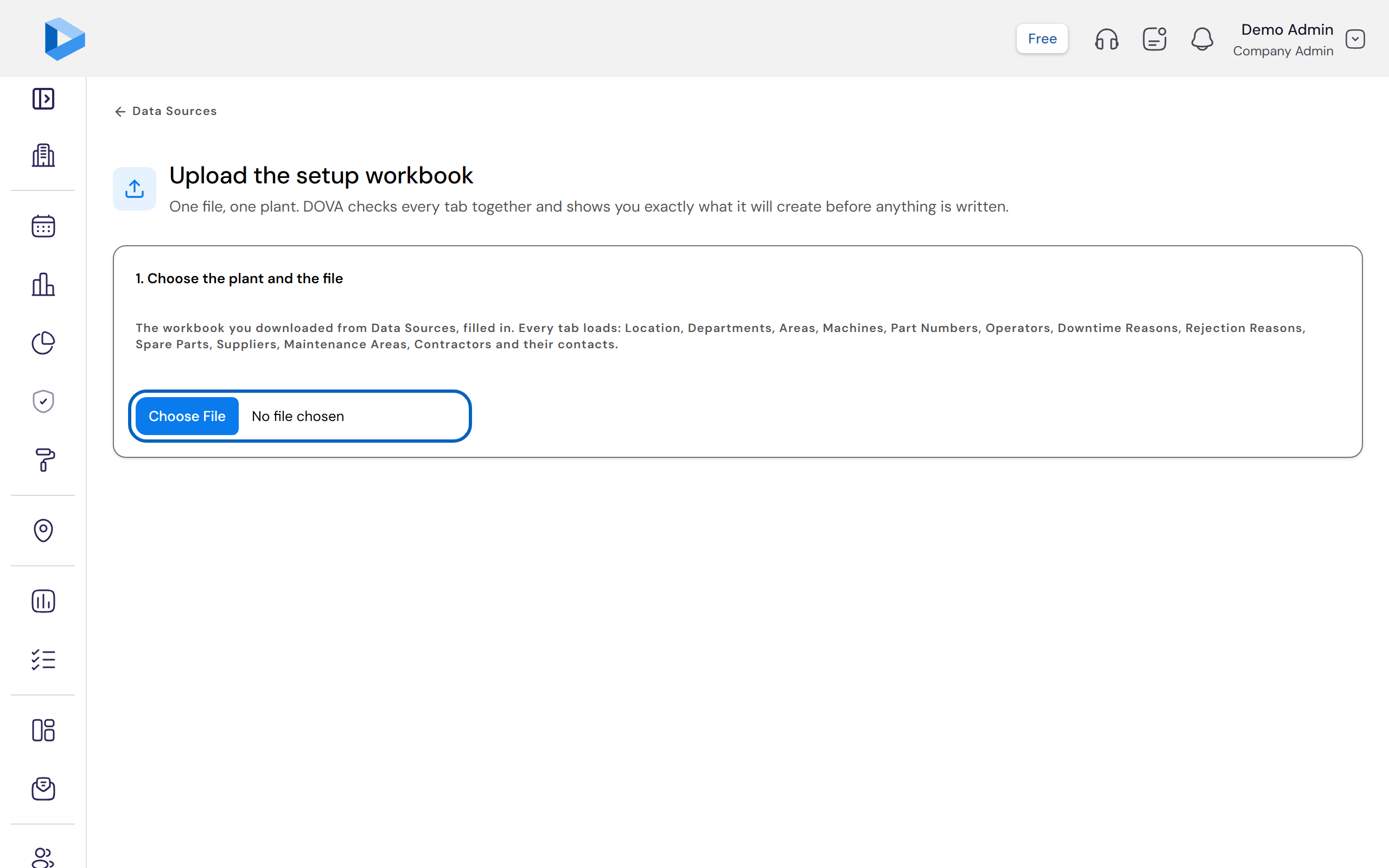
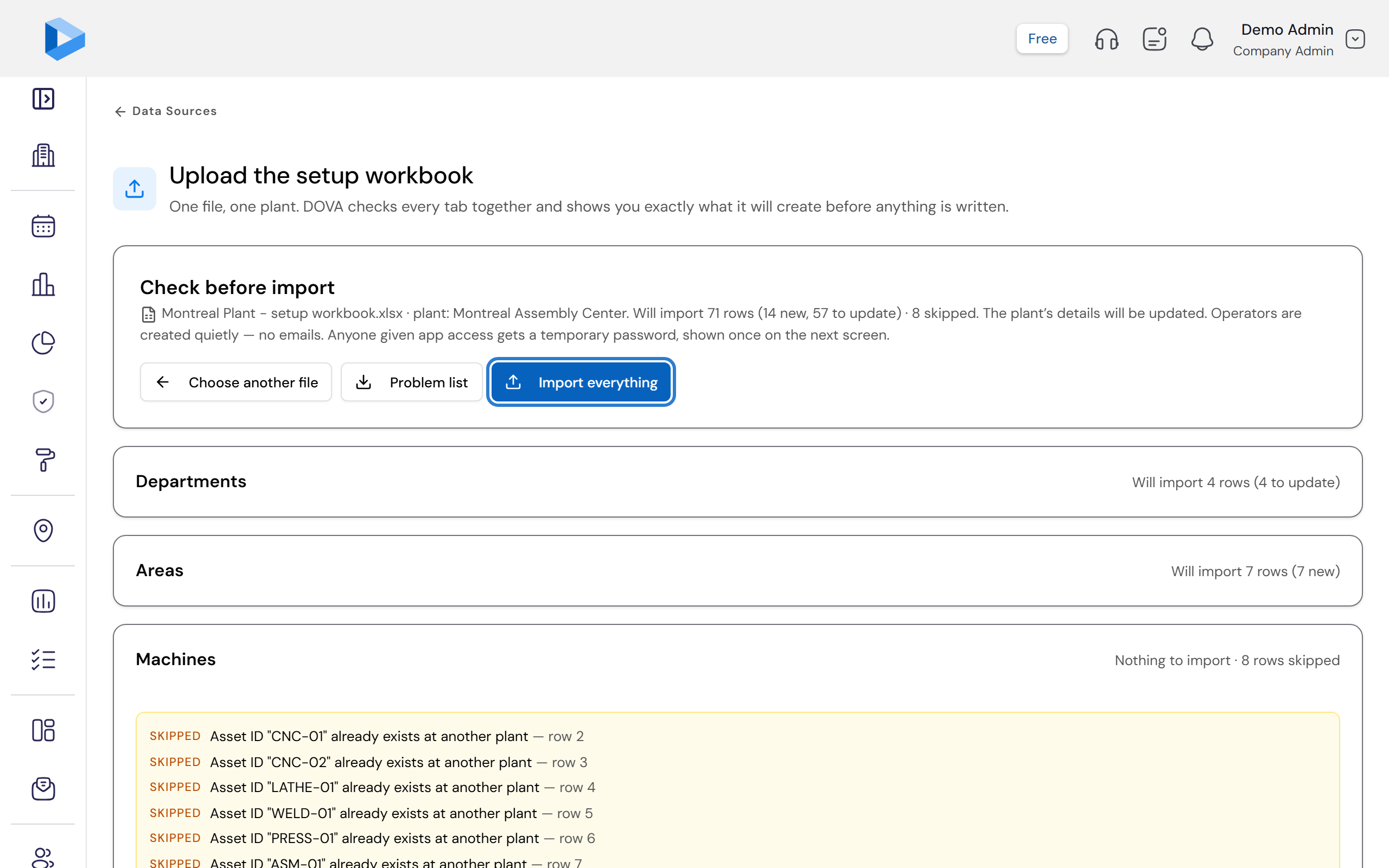
Back on Data Sources, click Upload the filled workbook. Pick the plant, then choose your file (.xlsx). DOVA reads every tab and shows a Check before import screen. Nothing is written yet.
The check lists every tab with how many rows will be added, updated or skipped, and the reason for each skipped row. Click Problem list to download the skipped rows as a file, fix them in Excel, and choose the file again.
Import
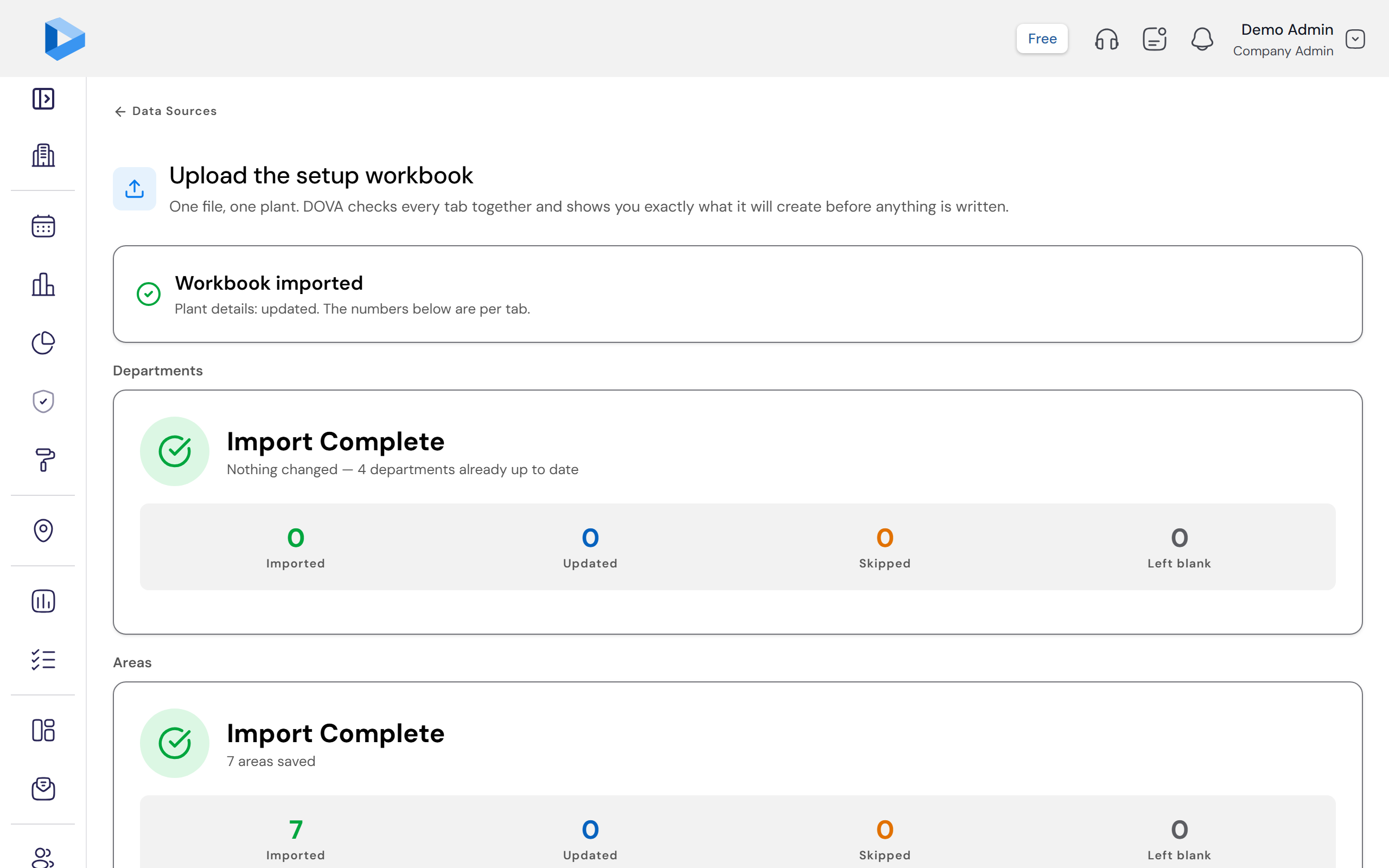
When the check looks right, click Import everything. The Workbook imported screen shows what was added and updated on each tab. If you gave any operators app access, their temporary passwords appear here once — click Download list and keep it safe, because they are not shown again.
The three rules
- A filled cell replaces the value in DOVA.
- An empty cell never erases anything.
- Nothing is ever deleted by an upload. To remove a record, do it in the app.
Try it first with the sample
The Sample workbook with dummy data card downloads a made-up plant, stamped with the name of the plant you pick, so you can see a filled file and try the upload. Only import the sample into a test plant — it adds the dummy departments, machines and parts to whichever plant you choose.
Video: coming soon. This lesson will link a two-minute video of the same steps as soon as it is recorded.
Need more help?
Contact customer support with your question. We reply within one business day.
contact@dovamfg.com